
Drake · AI party take
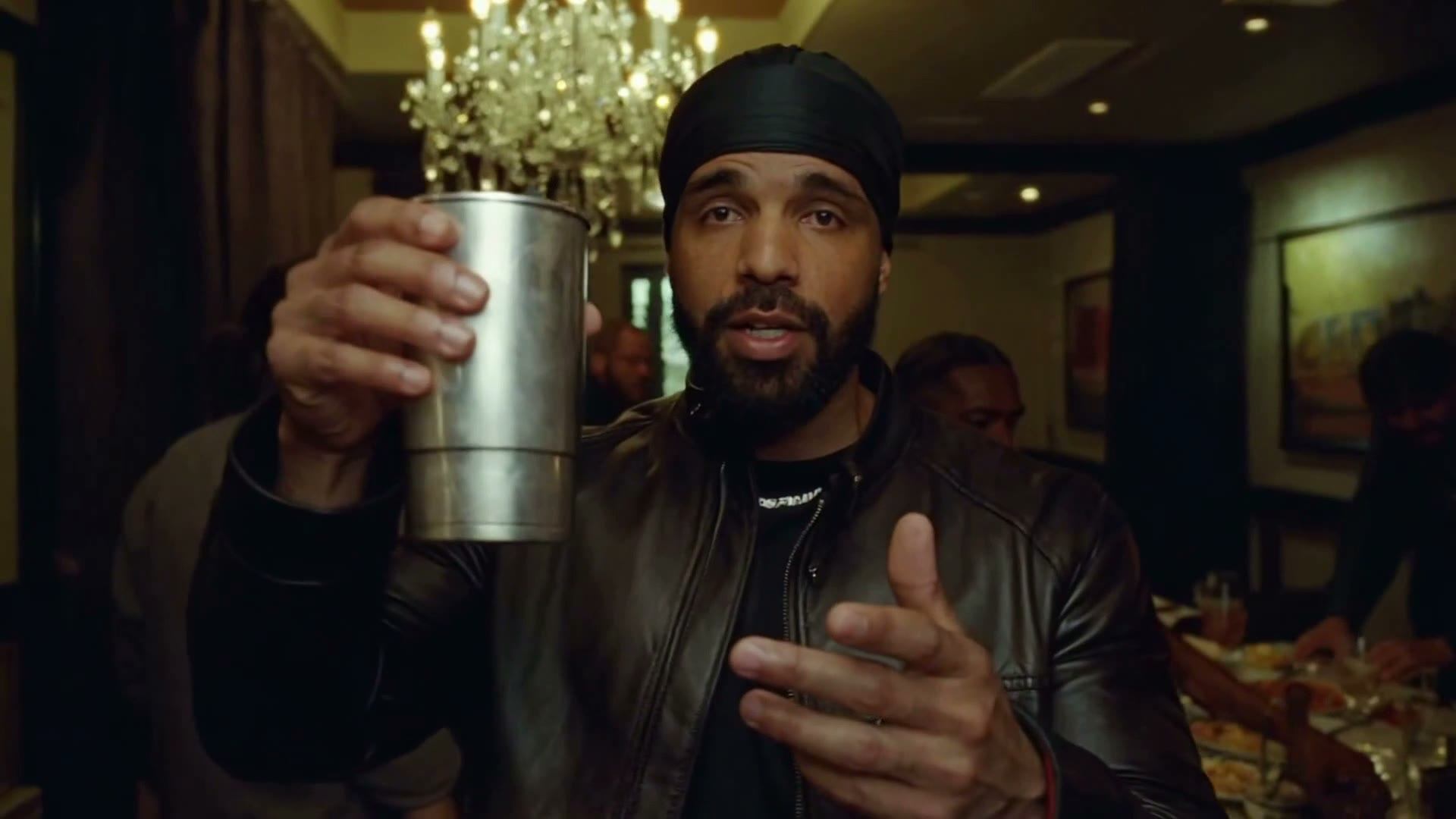
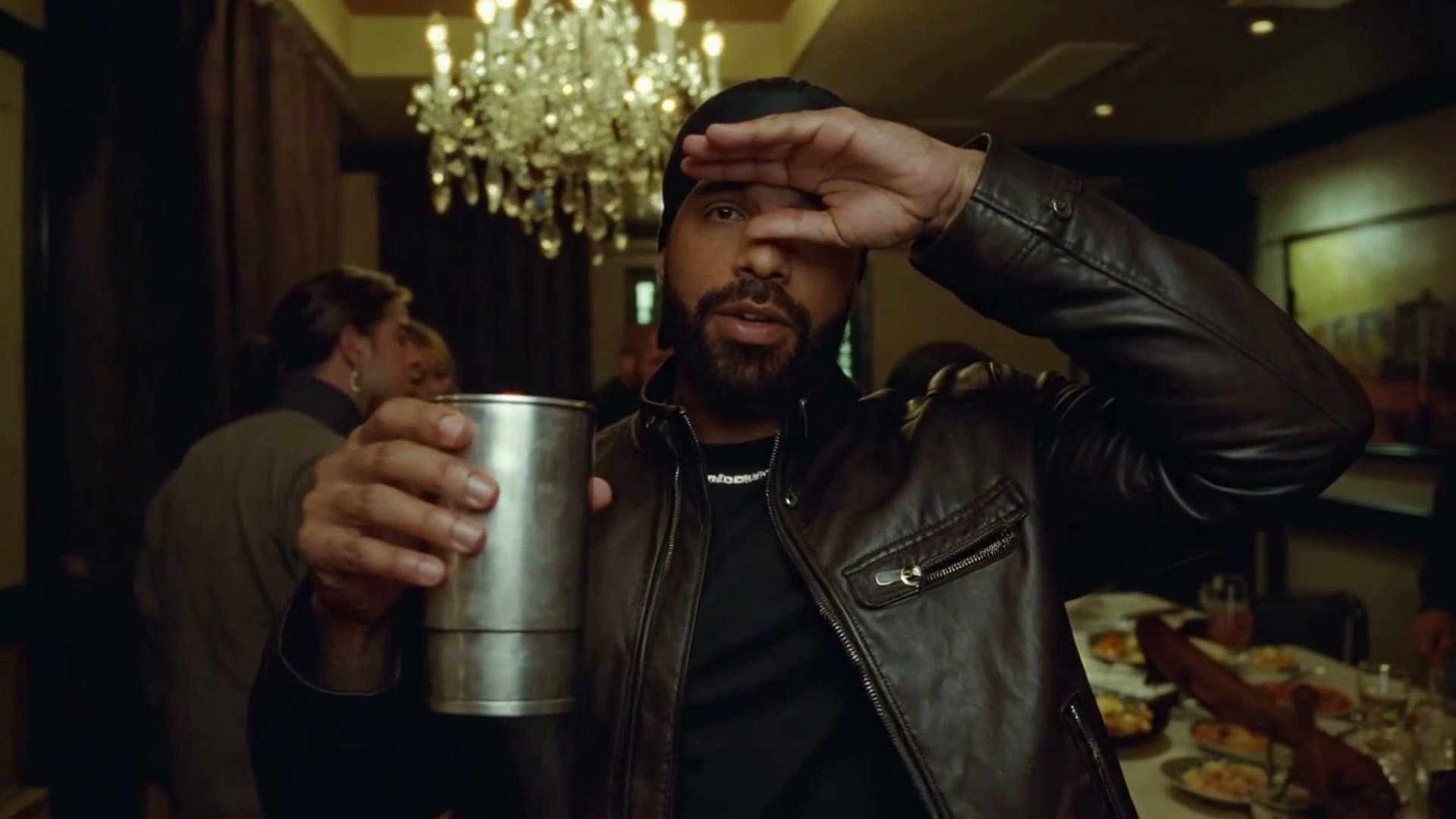
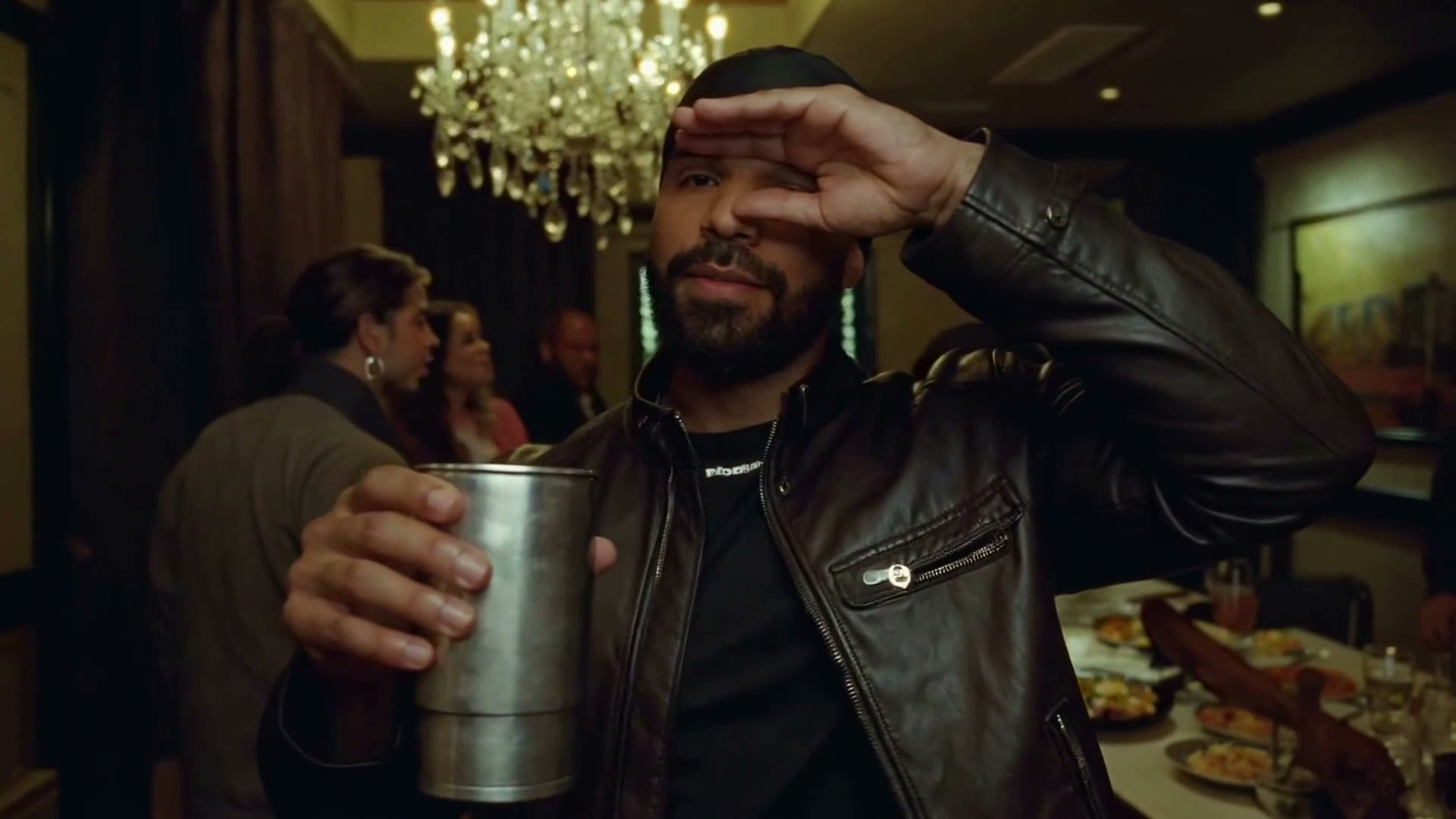
Create AI videos from your photo or video. Choose the look, edit the prompt, and make the party your own.
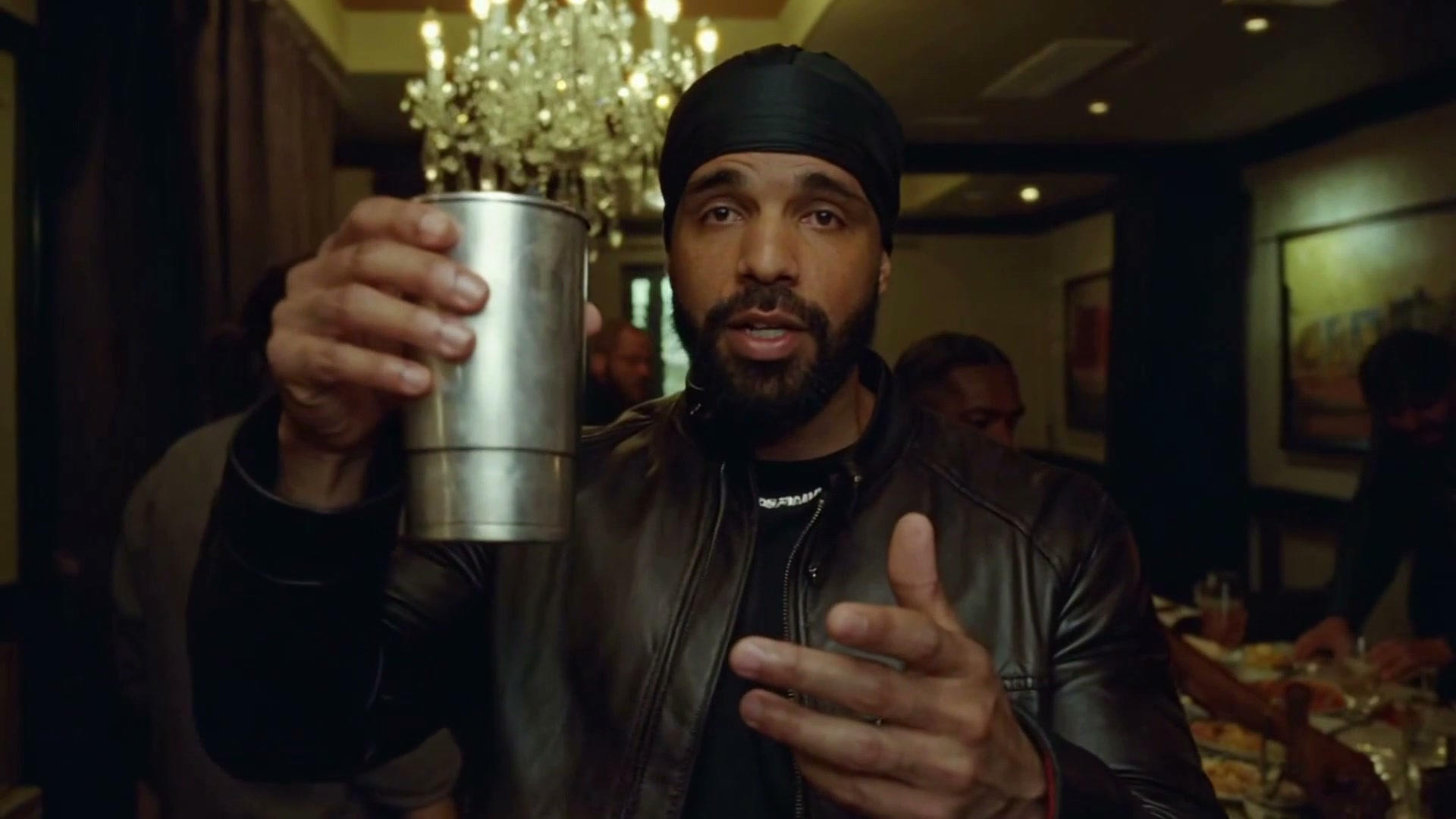
AI demos · fictional creators · silent previews. Drake is an AI recreation; no affiliation or endorsement.
THE TAKE, FRAME BY FRAME
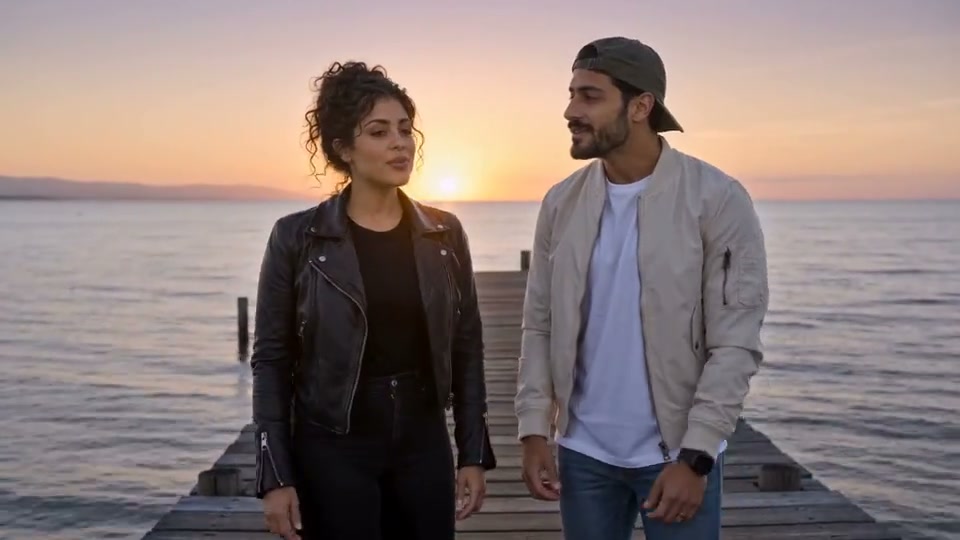
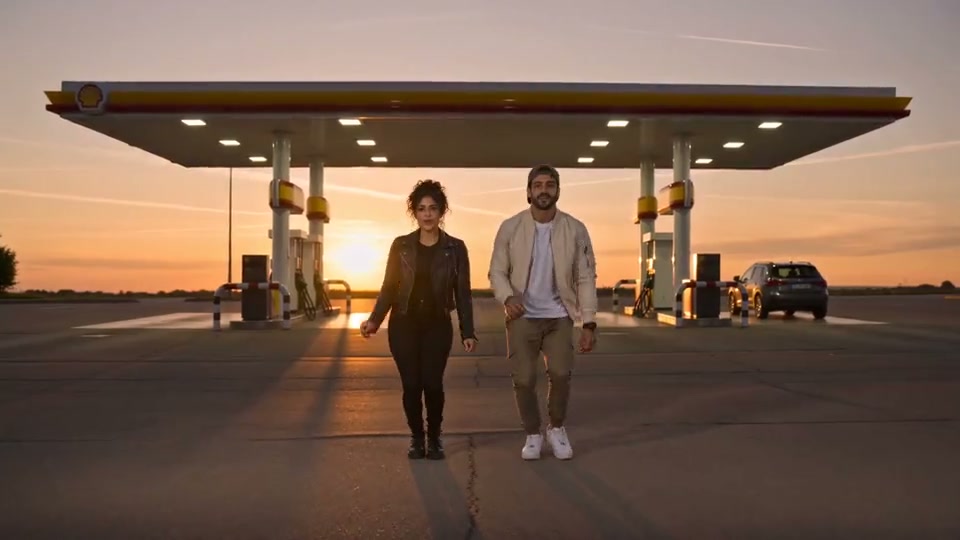
Frames captured from each generated video. Explore the party, the expression and the finish.
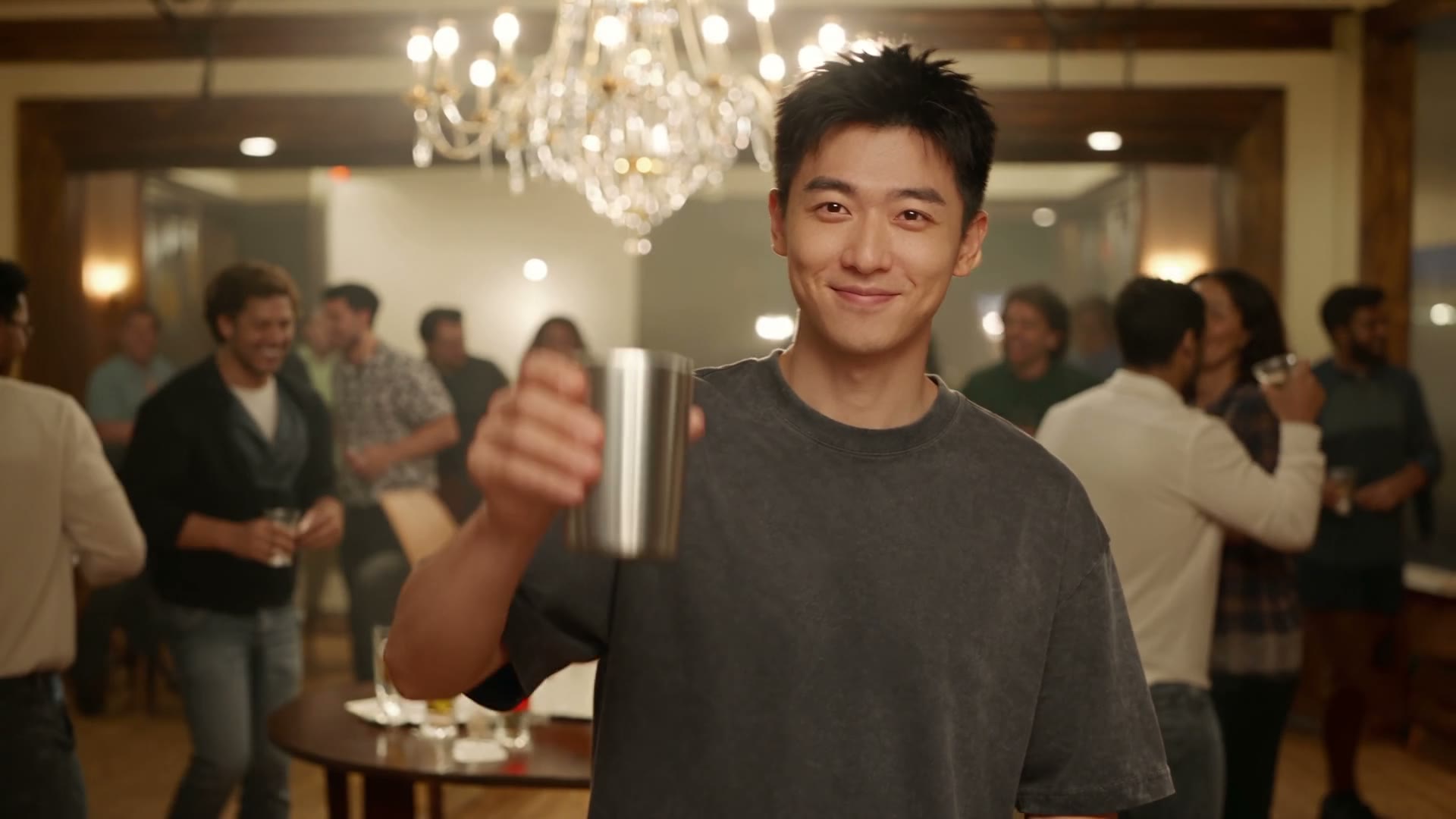
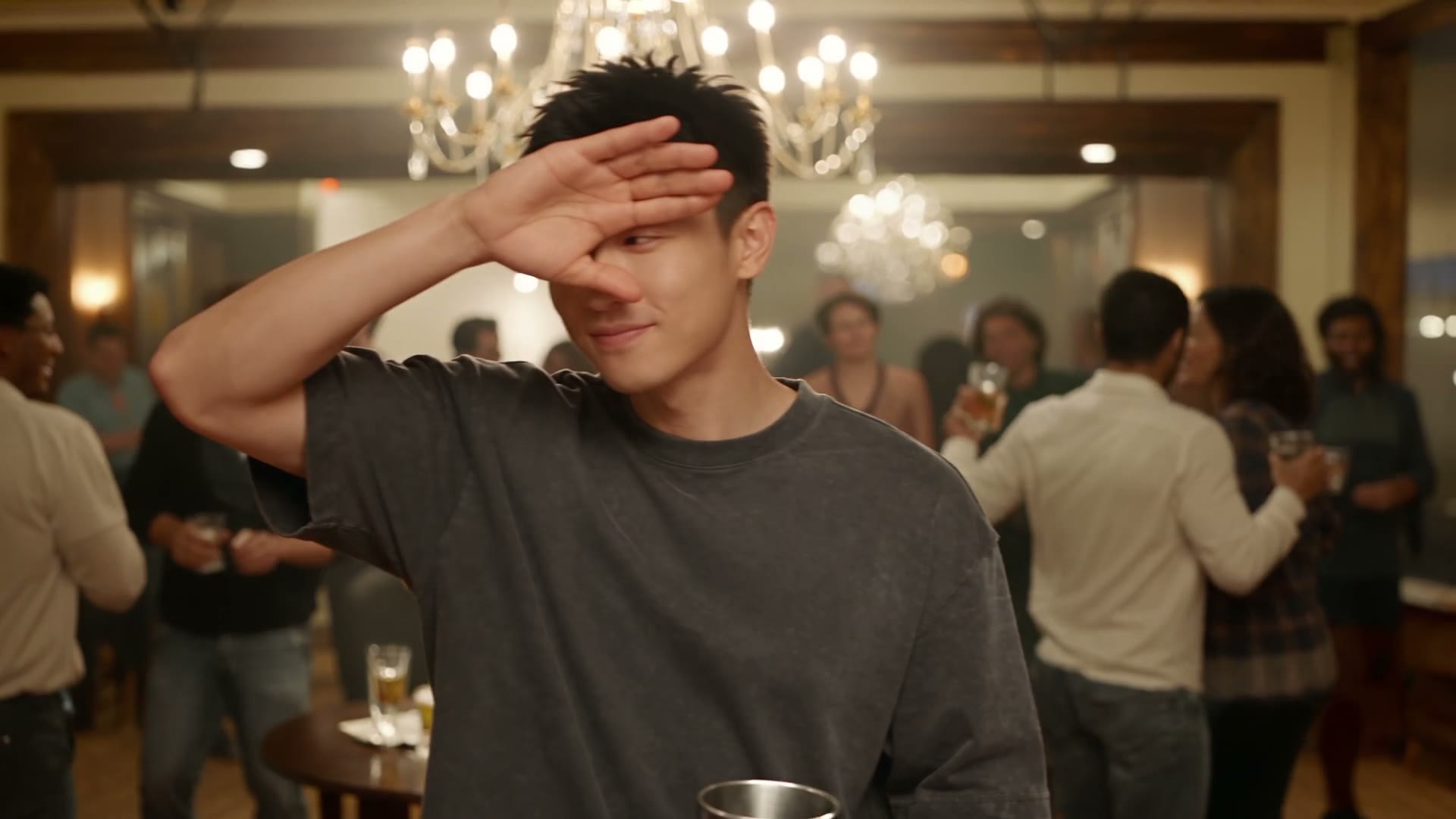
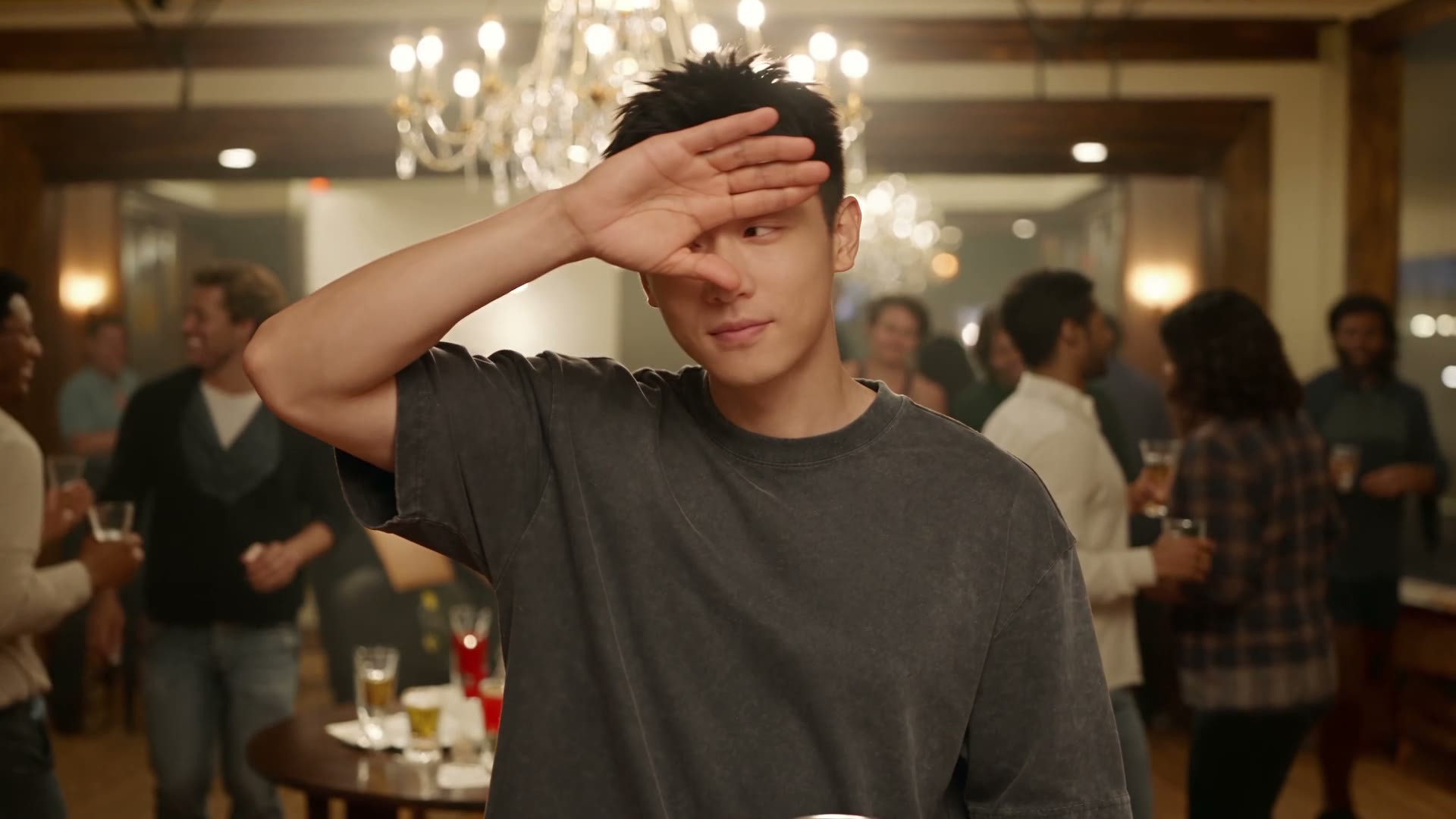
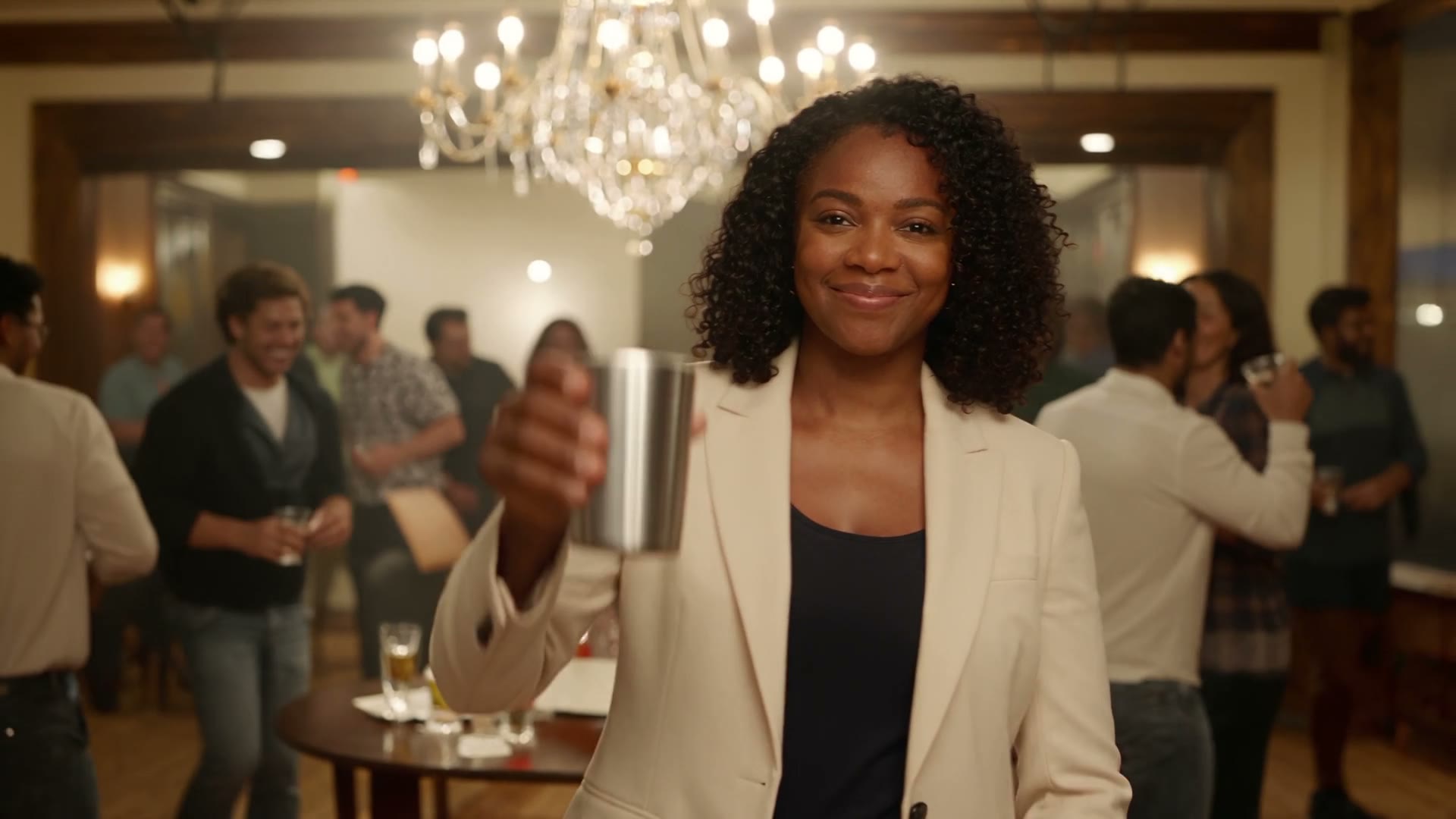
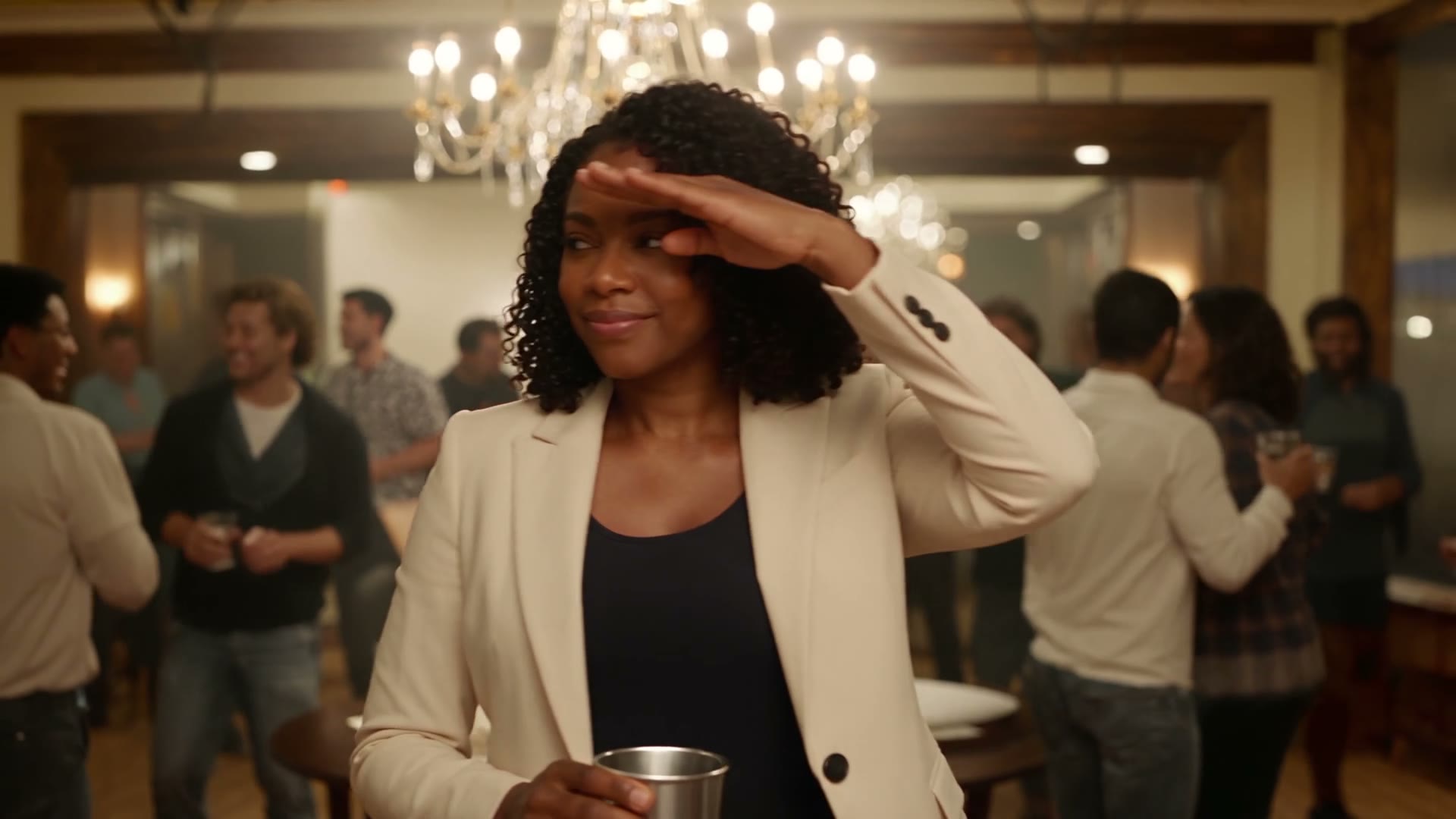
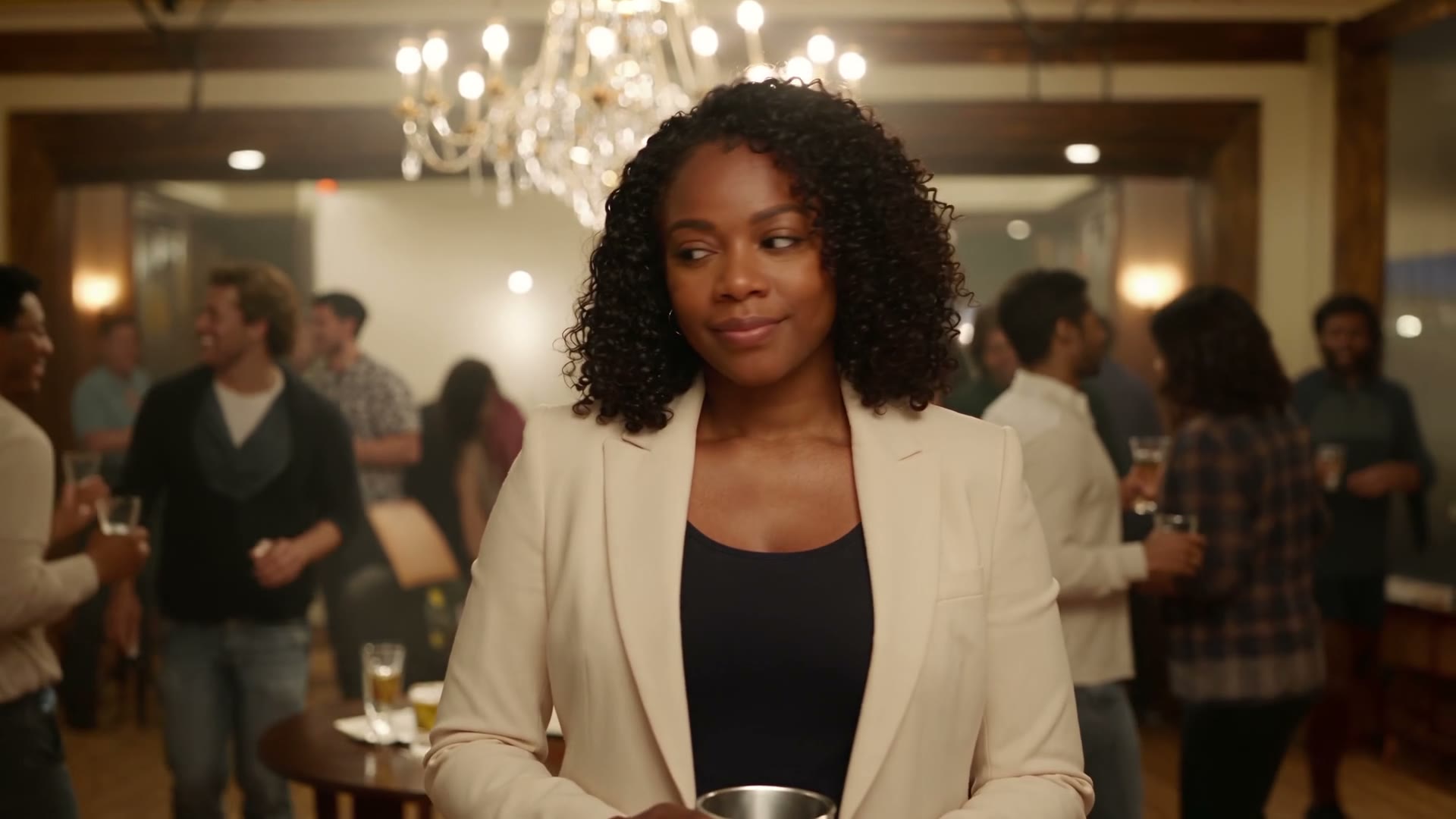
01 / PROMPT RECIPES
Start from a visual recipe when you already know the effect you want. Templates explain the required materials and bring a useful setup into the tool.
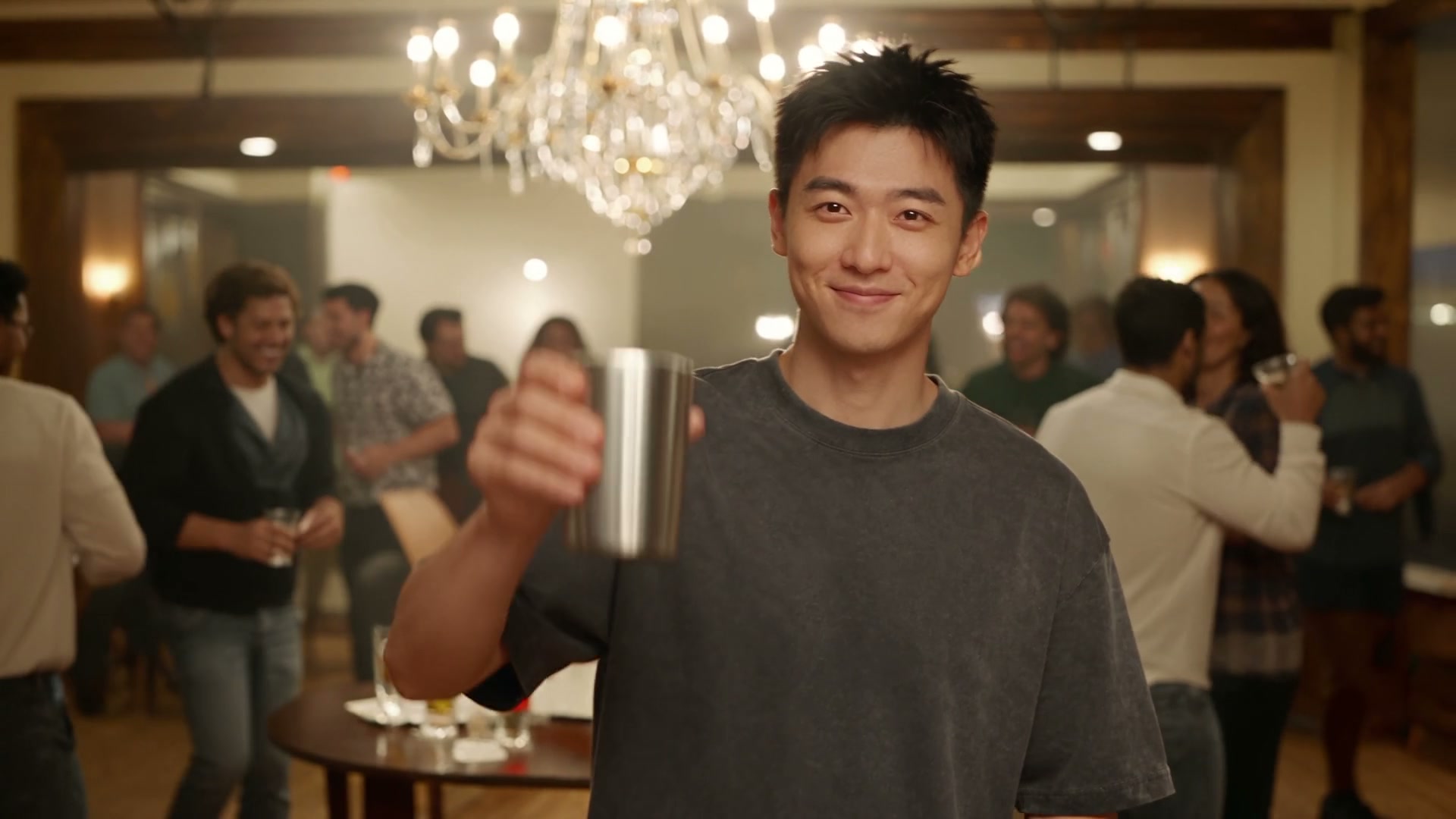
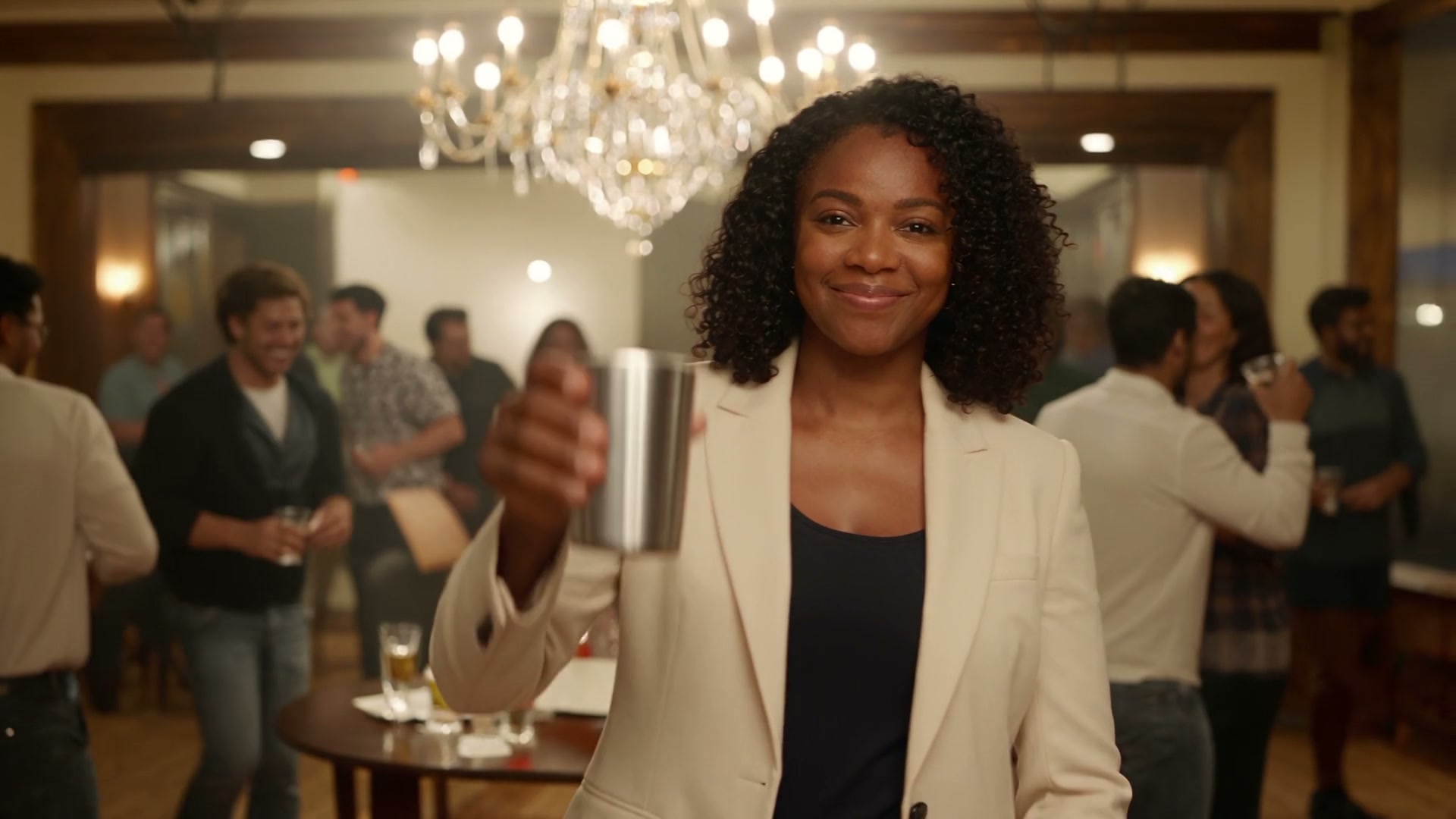
These generated party clips show a style reference. Each recipe has its own prompt; inspect the exact showcase prompts above to see how the displayed clips were made.
03 / HOW IT WORKS
One scene, clear settings, and a place to return to your work.
Write a focused scene or upload a reference image. Choose a reusable recipe if you want a starting point.
Choose a supported duration, format and resolution. Review the sample estimate before submitting.
Sign in to submit. Your draft stays available, and your task history is the place to check progress when you return.
Preview the completed file. Reuse its prompt and settings to make one deliberate change for your next take.
02 / YOUR STARTING POINT
You do not need to know a model name. Begin with the material you have, then choose the controls that fit.
DIRECT YOUR SCENE
A useful video starts with a clear subject, a readable action, and a reason for the camera to move. Explore the controls that match your idea, then compare the output with the brief.
Give the model one clear scene. Name the action, setting, mood, and camera movement.
Use an image to guide the subject or a supported reference to shape the motion. Make the role of each input clear.
Review composition, continuity, and sound. Reuse the settings that worked and change one decision at a time.
A flowing red dress on a windswept coast, slow cinematic tracking shot, golden hour, dramatic and filmic.
Start with a product photo, portrait, or visual you already like. Use image-to-video to describe what should move and how the shot should unfold.
Check the model’s input requirements, choose the format, and review the estimate before generating. Compare the subject with the original before keeping the take.
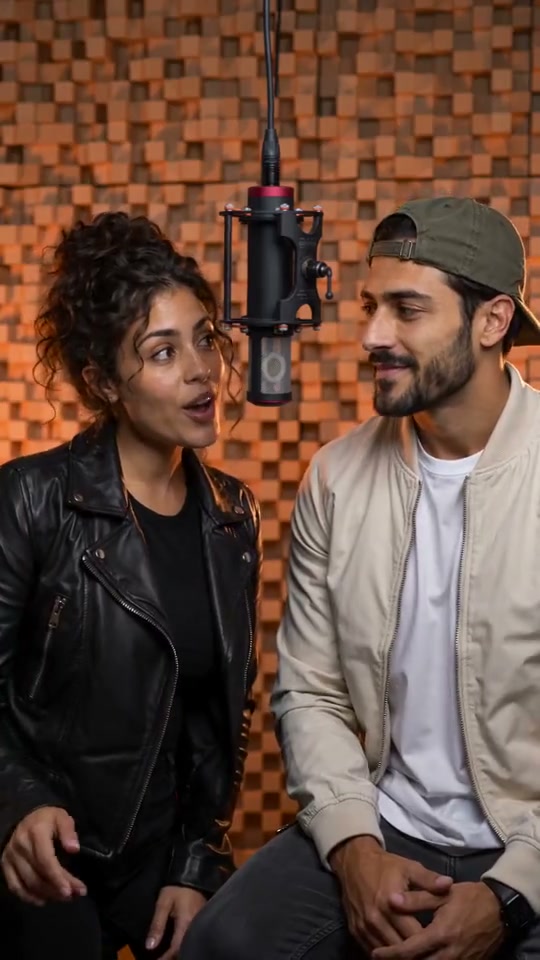 Reference image
Add motion, light, and atmosphere to bring your still image to life while keeping the details that matter.
Try image to videoUse a concrete example to understand each creative decision.
04 / VIDEO TOOLS
Choose a tool by the material you have and the result you need. Each workflow brings its own inputs and settings.
Describe the subject, action, and camera.
Open toolUse a still as your first visual direction.
Open toolDevelop an existing clip with new instructions.
Explore tool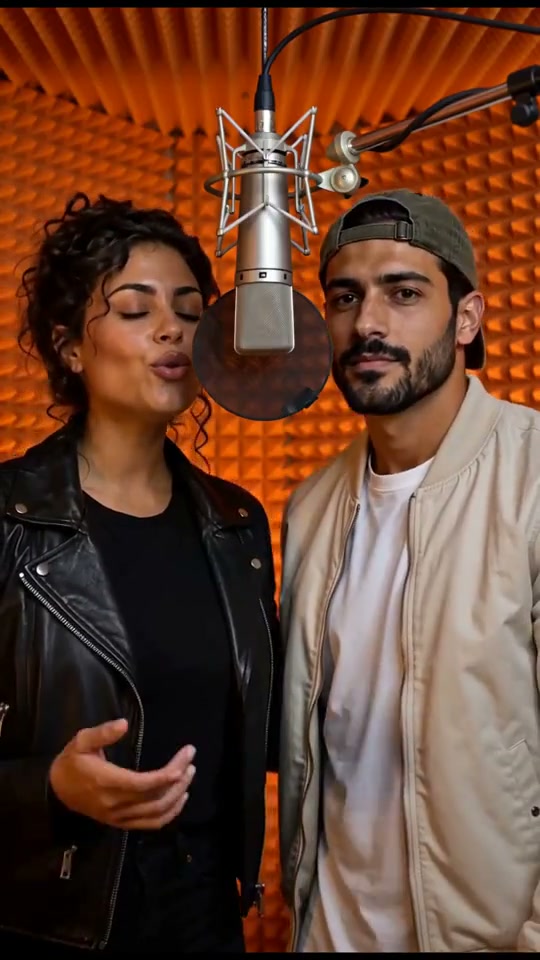
Guide movement with a reference.
Explore tool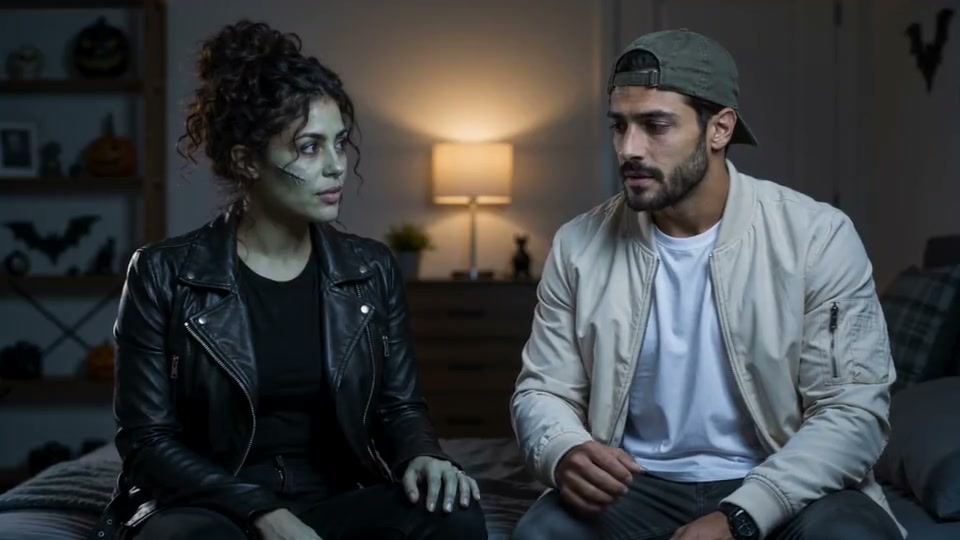
Continue a scene into another moment.
Explore tool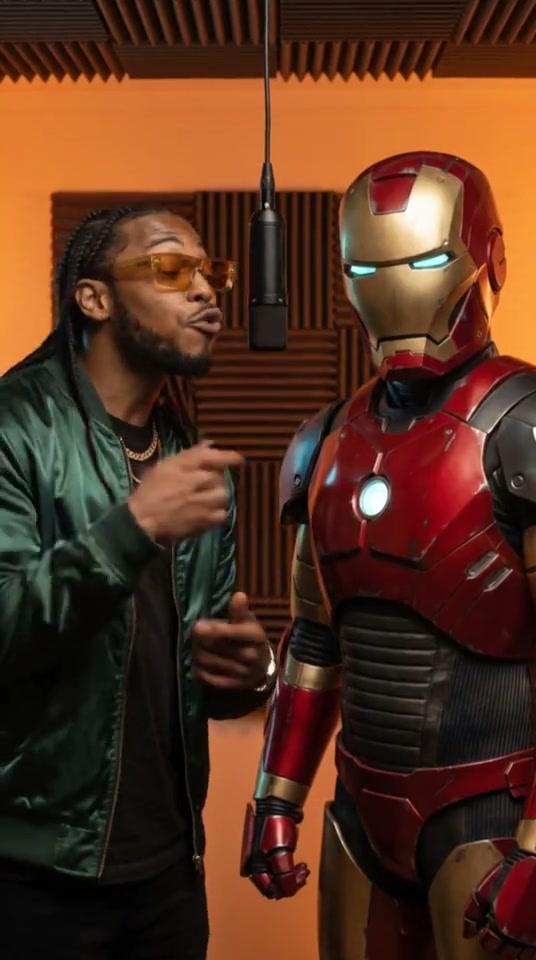
Prepare a selected take for a larger canvas.
Explore tool05 / VIDEO MODELS
Different models offer different inputs, controls, and ways to shape a scene. Compare the workflow you need before choosing a name.
Open a model to explore examples, supported settings, and the current generation estimate.
MODEL SPOTLIGHT
When a subject, setting, or motion already has a clear direction, start with those materials. Assign a purpose to each supported reference and describe the shot you want to create.
The model page keeps the examples, input limits, settings, and generator together so you can move from understanding to trying.
Explore reference workflowsFind the right starting point for your idea.
Different ideas call for different starting points. Here are a few common ways to use Burning Bridges AI.
Start with a product photo and a simple idea. Create polished clips for ads, launches, or social.
Start with a photo or a focused prompt. Turn everyday moments into something shareable.
Start with a reference image or concept. Explore lighting, camera moves, and mood.
Start with a character, sketch, or image. Bring original worlds and stories to life.
07 / PRICING
See the video count, then choose your plan. One balance for images and videos.
Pay for 10 months, get all 12. Full annual credits up front · save 16.7%.
Monthly and yearly pricing preview. Subscriptions are not available for purchase yet; preview buttons open the workspace.
For your first ideas.
Or 20 Fast videos (15s, 720p)
Or 2,490 AI images (1K)
Your regular creative routine.
Or 30 Fast videos (15s, 720p)
Or 3,750 AI images (1K)
For bigger projects.
Or 72 Fast videos (15s, 720p)
Or 8,820 AI images (1K)
Video and image counts are alternatives, not combined allowances. Video counts exclude uploaded video references; all models remain available. Mini and Fast are different models, and results can differ.
Selected video: —
Counts are alternatives, not combined allowances. Video estimates here exclude reference video duration. Your workspace quotes uploaded references before charging. Images use Z-Image Turbo at 1K.
Plans change your credit allowance. Resolution depends on the model, with a higher quote for some settings.
All plans include 1K image generation, text-to-video, image-to-video, AI scene assistance and generation history when the services launch. Audio and reference controls depend on the model. Priority queues, batch generation and upscaling are not offered.
Your model, length, resolution and references determine the quote. Review it before submitting.
Planned yearly subscriptions give you a full year of credits up front. One-time packs have no scheduled expiration.
Technical failures release reserved credits. A completed AI result can vary from your prompt.
08 / FAQ
Inputs, credits, and what happens next.
Bring an idea. Shape it into your next scene.
More tools, ideas, and resources to help you create.
Turn your ideas into video in different ways.
Explore leading models for every style.
Try new techniques and fresh ideas.
Learn and get the most from Burning Bridges AI.